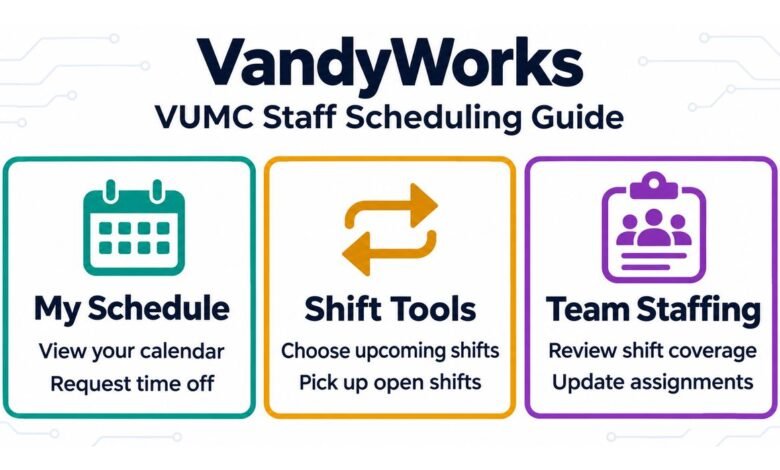
VandyWorks is the former name of the staff scheduling system at Vanderbilt University Medical Center (VUMC). If a coworker tells you to check VandyWorks before your next shift, look for Infor Workforce Management (WFM). That’s the name VUMC adopted when it moved the system to the cloud in April 2024.
You can use WFM to check when you work, choose shifts during self-scheduling, pick up available shifts, trade with a coworker, and submit time-off requests. Managers and shift leaders with the right access can also check team coverage and update assignments. For most employees, the quickest way to get comfortable with the system is to learn where the schedule calendar, Self Scheduler, and Shift Billboard live.
Quick Info About VandyWorks
| Detail | What to know |
|---|---|
| Former name | VandyWorks |
| Current name | Infor Workforce Management (WFM) |
| Organization | Vanderbilt University Medical Center (VUMC) |
| In use at VUMC since | 2006 |
| Cloud migration | April 2024 |
| Main users | Nursing staff and many non-nursing departments |
| Employee tools | Schedule calendar, Self Scheduler, Shift Billboard, shift trades, and leave requests |
| Management tools | Schedule Admin and Advanced Schedule View |
| Sign-in method | VUMC Single Sign-On |
How VandyWorks Became Infor Workforce Management
VUMC began using VandyWorks in 2006. Over time, nursing and many non-nursing departments across the medical center used it to organize schedules, plan time off, and coordinate shift changes. Employees could see their own assignments, while scheduling teams could work from a shared view of staffing.
In April 2024, VUMC moved the system to the cloud and renamed it Infor Workforce Management. The move brought a new login address, a new icon on clinical workstations, and a mobile-friendly Self Service Portal for the Shift Billboard and Self Scheduler. Familiar tools such as the schedule calendar, leave requests, and shift trades carried over.
That’s why you may hear both names during orientation or on the unit. A colleague may still say VandyWorks when asking you to check a shift, while the workstation and training materials use Infor WFM.
READ THIS TOO: What Is Bored Flix? A Simple Guide to the App and Websites
How to Sign In to VandyWorks at VUMC
On a VUMC clinical workstation, look for the red Infor icon. If you’re using a browser, open the official Infor Workforce Management page through VUMC’s staff resources. The sign-in page uses VUMC Single Sign-On, where you enter your VUMC email address and password. VUMC requires multi-factor authentication when you’re outside its Wi-Fi network and disconnected from its VPN.
After you sign in, use WFM Quick Links to open the area you need. Employee Self Service is where you check your calendar, submit leave requests, and use shift trades. The Self Service Portal opens the Shift Billboard and Self Scheduler. Schedule Admin serves staff who have permission to manage schedules.
If you can see your calendar but can’t find the Billboard, open Quick Links and switch to the Self Service Portal. The two menus have similar names, so it’s easy to land in the wrong one.
Where to Find Your Work Schedule
Open Employee Self Service to see your schedule calendar. It opens in the monthly view, which helps when you want to see how several weeks of work fit around other plans. If you’re checking your next few shifts, select Week above the calendar to narrow the view.
The calendar is also a useful place to return after a schedule change. For example, if you asked to exchange a Thursday shift for a Saturday shift, check your schedule after the trade goes through. Looking at the calendar lets you see how the change fits with your other assignments that week.
How Self-Scheduling Works
The Self Scheduler lets employees choose shifts for an upcoming schedule when their team’s self-scheduling window is open. To find it, select Self Service Portal from WFM Quick Links. Your department’s scheduling instructions guide when you can make selections and what shifts you can choose.
If you often work the same shift, WFM has a shortcut called Quick Select. Once you set a default shift, Quick Select lets you add it with one click during self-scheduling. That can save time if you choose the same shift on several days in a scheduling period.
If you’re new to the unit, check when your team opens self-scheduling and when it expects employees to review the finished schedule. Knowing both dates helps you plan when to make your selections and when to check your assignments.
How to Find Open Shifts on the Shift Billboard
The Shift Billboard gives employees a place to look for shifts available to pick up. Open it from the Self Service Portal. If you have room for an extra shift next week, for instance, browse the available listings and check the date, hours, and team before following the prompts to claim one.
The Billboard is also part of the workflow for posting a shift. If you’re trying to give up a shift, follow your team’s process for posting it and check your schedule after the change goes through. VUMC offers a short Learning Exchange module that walks employees through claiming a shift, which is helpful if you want to see the steps before doing it yourself.
How to Trade a Shift With a Coworker
Use Shift Trades in Employee Self Service when you and a coworker want to exchange shifts you already have. Say you’re assigned to Friday and a coworker is assigned to Sunday. If you’ve agreed to switch, Shift Trades is where you start that exchange.
If your goal is to find an extra shift or make one of yours available for someone to take, use the Shift Billboard. A quick way to decide which tool to open is to look at what you’ve arranged. An exchange between two coworkers goes through Shift Trades. A shift available for someone to claim belongs on the Billboard.
How to Request Time Off
To request time off, open Employee Self Service and select Leave Requests. Enter the dates you need and follow the prompts to submit the request. If you’re coordinating time off with travel, an appointment, or a family commitment, check the request status before treating the dates as approved.
It also helps to know your department’s submission deadlines. A request for a future scheduling period may need to go in before your team starts building that schedule. If you’re unsure how your department handles a particular kind of leave, check with your manager or scheduler before submitting it.
How Managers Review Staffing and Assignments
Employees usually open WFM to see their own hours. A manager or shift leader needs to see how the whole team’s schedule fits together. With the appropriate access, they can open Schedule Admin and use Advanced Schedule View (ASV) to review coverage and make changes.
For example, if a shift opens up, a scheduler can review the team’s assignments before deciding how to cover it. VUMC’s job aids cover tasks such as adding shifts, splitting a shift, and temporarily assigning an employee to work on another team. That last practice is called floating.
VUMC also documents a report that compares WFM schedules with Kronos time-clock records. If someone clocks in before their scheduled start time, the report can flag the difference for review. The schedule shows the planned hours, while the clock record shows when the employee actually clocked in or out.
What to Do When You Need Help
Start with the point where you got stuck. If an old VandyWorks bookmark fails, open WFM from VUMC’s staff resources or use the Infor icon on a clinical workstation. If you can sign in but can’t find a feature, check WFM Quick Links and confirm that you’re in the right area.
VUMC offers job aids and self-paced Learning Exchange modules for employees, including guides to the Self Scheduler and Shift Billboard. Managers and scheduling staff can find separate resources for coverage, assignments, and floating. VUMC also offers instructor-led training for leaders who need more practice with Schedule Admin.
For questions about your own shift, leave request, or scheduling window, start with your unit scheduler or manager. For help finding a feature or learning how it works, use the VUMC WFM training resources.
READ THIS TOO: Flixer Tv: Complete Guide to Its Background and Streaming Appeal
Final Thoughts
VandyWorks has been part of staff scheduling at VUMC since 2006, and its current name is Infor Workforce Management. Once you sign in, the right menu depends on what you need to do. Open Employee Self Service to check your calendar, request time off, or start a trade. Use the Self Service Portal to choose upcoming shifts or see what’s available on the Billboard. Knowing where those tools live makes the system easier to use, especially when you need to make a change between shifts.