Sharing knowledge through videos has become an important part of modern communication. People use video demonstrations to explain complicated subjects, introduce digital products, teach software skills, and communicate with audiences online. While traditional cameras are useful for recording people and physical activities, many digital tasks require a different solution. Capturing exactly what happens on a computer display can make instructions easier to understand and follow.
A screen recorder provides a practical way to capture desktop activities and transform them into shareable videos. Whether someone is preparing a training session, creating a software tutorial, or recording gameplay, the right application can simplify the entire process. iTop Screen Recorder is one option for Windows users who want to capture their screens and produce useful video content.
Why Screen Recording Is Essential for Digital Communication
Written instructions are useful, but they do not always explain every detail of a process. For example, explaining how to configure a software application through text may require several paragraphs. A short video can demonstrate the same procedure by showing each step directly.
This is one reason screen recording has become popular across different industries.
Teachers can prepare lessons that students revisit whenever they need help. Businesses can create employee training materials without repeatedly explaining the same procedures. Technology professionals can demonstrate troubleshooting solutions, while content creators can produce product reviews and educational videos.
Screen recording also makes collaboration easier. Instead of arranging a live meeting for every question, teams can share recorded explanations that colleagues can watch at their convenience.
Getting Started with iTop Screen Recorder
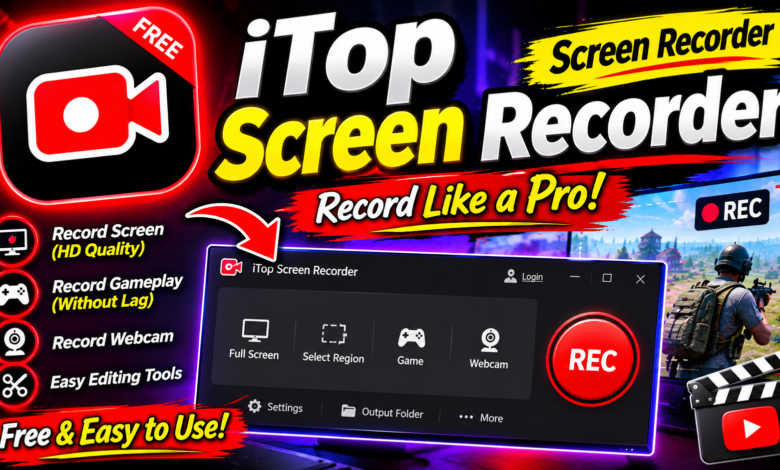
iTop Screen Recorder is a Windows application designed to capture activities taking place on a computer screen. It offers a convenient recording solution for users who want to create demonstrations, presentations, tutorials, and other digital content.
The main advantage of desktop recording is that it captures the actual computer interface. Viewers can see menus, buttons, application windows, and other details clearly without depending on a camera pointed at a monitor.
For beginners, a straightforward recording workflow can make video creation less complicated. Users can prepare their desktop, select the desired recording area, review available settings, and start capturing their activities.
The application can be useful for personal projects as well as professional content creation, depending on the user’s recording requirements and the features available in their installed version.
Features That Make a Screen Recorder Useful
Different recording applications provide different capabilities. Understanding the most important features can help users choose suitable software for their projects.
1. Custom Screen Selection
Recording the entire desktop is not always necessary. Sometimes, users only need to capture a particular application window or a selected portion of the display.
Flexible recording areas help keep videos focused and prevent unrelated information from appearing in the final footage. This is especially useful when creating software demonstrations and step-by-step tutorials.
2. Microphone and System Sound
Audio can make a recording significantly more informative. A presenter can explain what is happening while demonstrating a process, helping viewers understand each action.
Microphone input is useful for narration, while system audio can capture sounds produced by applications or games. Users should check their audio configuration before recording important material.
3. Webcam Support
Some videos benefit from showing the presenter alongside the screen. Webcam integration can make educational lessons, product demonstrations, and business presentations feel more personal.
When supported by the selected recording settings, combining webcam footage with desktop capture can provide a more engaging presentation.
4. Video Resolution and Quality
Clear visuals are important when recording software interfaces or detailed demonstrations. Resolution and frame rate can influence how smoothly and clearly the final video appears.
Higher recording settings may produce larger files and require more computer resources. Users should choose settings that match their hardware and the platform where they plan to publish their videos.
How to Prepare a Professional Screen Recording
Good preparation is essential for creating useful video content. Before launching iTop Screen Recorder, users should decide what they want to demonstrate and organize the necessary material.
First, create a simple outline. It should include an introduction, the main demonstration, and a short conclusion. Having a clear structure reduces unnecessary pauses and makes the recording easier to follow.
Next, prepare the desktop. Close unrelated applications, remove distracting notifications, and open the software or documents required for the demonstration.
Audio should receive special attention. Choose a quiet recording environment and check microphone levels before starting. A short test recording can help identify unwanted background noise or missing sound.
During the demonstration, move the cursor carefully and explain important actions. Avoid switching between unrelated windows because this can distract viewers.
After recording, review the footage to check whether all important steps are visible and understandable.
Practical Uses Across Different Industries
A screen recorder can support many types of digital work.
Education: Teachers can prepare lessons, explain online learning platforms, and demonstrate research techniques. Students can record presentations and create video assignments.
Software Training: Companies can produce tutorials that explain how employees should use internal applications, complete routine tasks, or follow digital procedures.
Gaming: Players can capture gameplay, share strategies, and preserve interesting moments. Recorded footage can also be useful for reviewing techniques and improving performance.
Technical Support: Support teams can demonstrate solutions to common computer problems. Visual instructions often make complicated troubleshooting procedures easier to understand.
Marketing: Businesses can create product walkthroughs, website demonstrations, and promotional presentations that show potential customers how a service works.
Online Content Creation: Bloggers and technology reviewers can record application features, compare digital tools, and prepare educational videos for their audiences.
These examples show that screen recording is useful far beyond traditional tutorials.
Simple Ways to Improve Video Quality
A successful recording depends on more than the software itself. The way content is presented can influence whether viewers remain interested.
Start with a clear explanation of the video’s purpose. Keep each section focused on one topic and avoid unnecessary repetition. When demonstrating a process, perform actions at a comfortable speed so viewers have enough time to understand them.
Use readable display settings whenever possible. Small text can be difficult to follow, particularly when videos are watched on mobile devices.
It is also helpful to maintain consistent audio levels throughout the recording. Sudden changes in volume can make a presentation uncomfortable to watch.
Finally, review the finished video before publishing it. Check for technical problems, incomplete explanations, and unnecessary sections that could be removed.
Protecting Privacy During Screen Recording
Recording a desktop can sometimes reveal information that users did not intend to share. Personal messages, passwords, email notifications, financial information, and confidential documents may appear unexpectedly.
Before starting a recording, close private applications and disable notifications where appropriate. Users should also review the final video carefully before uploading it to public platforms.
These precautions are especially important for employees, teachers, and professionals who create content using work-related computers.
Final Thoughts
Screen recording has made it easier to explain digital processes, teach new skills, and share information through visual demonstrations. From classrooms and workplaces to gaming channels and technology blogs, it provides a practical way to communicate ideas.
iTop Screen Recorder offers Windows users an accessible option for capturing desktop activities and preparing videos for different purposes. By choosing appropriate settings, organizing the desktop, checking audio quality, and planning each demonstration, users can create clearer and more useful recordings.
Ultimately, the best screen recorder is one that supports the user’s goals without making the recording process unnecessarily complicated. With the right preparation and a consistent workflow, everyday computer activities can become valuable educational and professional content.